Physical Address
304 North Cardinal St.
Dorchester Center, MA 02124
Physical Address
304 North Cardinal St.
Dorchester Center, MA 02124


Well, if you have got that annoying message stating that your iCloud storage is almost filled, then you know exactly what I am talking about. Initially, I thought the fix was very straightforward – delete some photos, uninstall some apps and continue doing whatever I was doing. Unfortunately, iCloud storage does not work in such an elementary way since your iCloud storage could be utilized by backups, photos, files, messages, and other data linked with your Apple account. Right now, Apple gives its users 5GB of storage at no cost, whereas their iCloud+ services provide you with larger storage, starting from 50GB, 200GB, 2TB, 6TB, and even 12TB storage depending on the region where you live.
It is nice to know that you don’t always have to pay for extra storage straight away. In many cases, the reason why you need hundreds of gigabytes of storage is simply that your storage is occupied by some data you have long forgotten about. It seems quite appropriate to me to describe iCloud as the cupboard of my computer – and before getting a bigger one, I should see if there is any old junk in it that takes unnecessary place. Thus, here goes the solution from the practical side.
The first reason why using iCloud can be tricky is the fact that iCloud storage is not precisely the physical storage of your iPhone. You may have 128GB, 256GB or even more in your device, whereas iCloud account has only 5GB initially as your free one. The explanation provided by Apple says that iCloud can store backups, photos and videos, iCloud Drive, and other information which means that there could be a lot of different types of data.
As you see, deleting one application on your iPhone does not mean that you solve all problems regarding iCloud. Nor does having an iPhone with more physical space solve all iCloud issues. It is always best to open up Settings, tap on your name, go to iCloud, and check out the storage breakdown since once you know what is taking up the space, everything becomes a lot clearer.
Imagine iPhone Storage to be your closet at home and iCloud to be some storage facility elsewhere. There may be a lot of space available in one but very little in the other. Apple offers different screens for checking the amount of storage available in your device and iCloud respectively, and their latest support documents indicate that both should be checked when running out of storage.
The above-mentioned example will prove relevant while dealing with photographs since original, high-resolution photographs can be stored on your device while iCloud Photos stores original images in the cloud and uses the optimized ones on your device if you opt to enable Optimize Storage. In other words, iCloud can be used to ease the pressure off your device, but it is not some magical storage where all the files disappear.
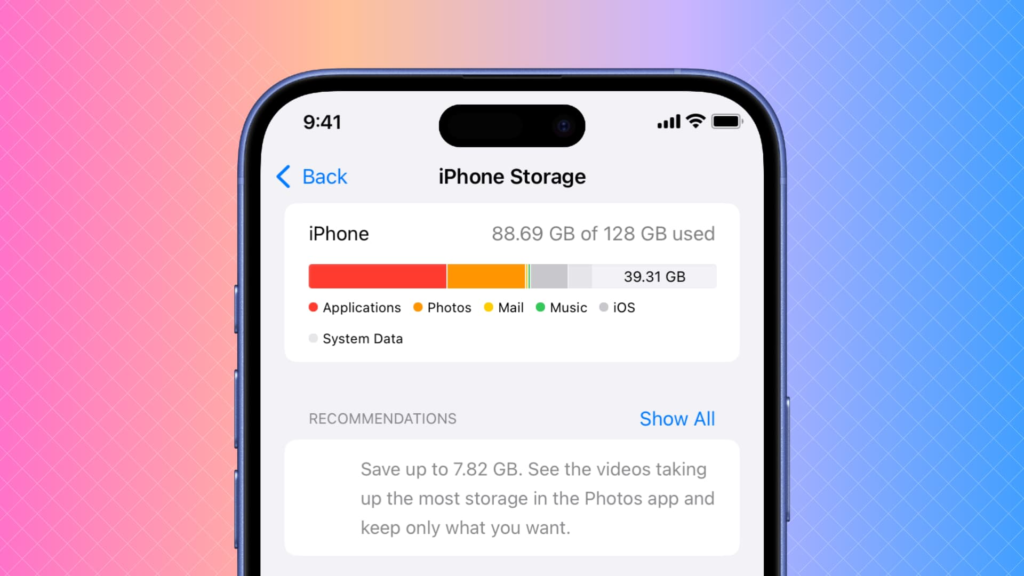
The first thing I would do before deleting something is checking the usage stats. Go to Settings -> Your Name / Apple ID -> iCloud and you’ll find out how much space you have left and which categories take this space. Apple suggests some hints, available on certain versions of iOS, to find out what kinds of files, photos, duplicates or even obsolete data is using your storage.
Probably, the most boring, but useful thing is the following. Imagine when you open your bank statement and find out that there are three subscriptions taking money from your account every month and you’ve totally forgotten about them. iCloud can be pretty similar to it. You will see that there are some obsolete backups taking some gigs of memory, whereas your new photos take up the majority of the remaining space.
Special emphasis should be made on backups that can accumulate gradually. According to Apple, iCloud Backup can automatically create backups for iPhones and iPads and a backup can become relevant if an iOS device gets lost, broken, replaced or reset.
Nevertheless, there might be backups of devices that were not used anymore. In case there is an old iPhone or iPad in storage settings, make sure to examine it and consider which files can be deleted carefully since the aim is to delete only useless information. It might sound silly but a slight change in a way of thinking can make the process of cleaning iCloud storage easier.
Photos are one of the most common reasons why people end up having large iCloud storage. This fact is quite obvious taking into account the way modern phones constantly take high-quality photos and videos. According to Apple, iCloud Photos keeps photos and videos in their original resolutions in iCloud storage while Optimize iPhone Storage can save space-consuming versions on the iPhone.
You should not spend time going through all your memories just because your storage meter seems terrifying to you. You can begin with the easy stuff such as duplicates, accidental screenshots, blurry pictures, unnecessary big videos, and repetitive downloads. You should also know precisely what you are doing since iCloud Photos syncs everything between all devices.
If the problem is not with your iCloud storage but with your actual iPhone capacity, then this feature may come to help. According to the description by Apple, if this feature is turned on, then full resolution photos and videos will be stored in iCloud, and compressed copies will be stored on the device.
This setting can be found in the following way – Settings, Apple ID, iCloud, and then Photos. It is a function that seems to be very obvious after you have figured it out. The device gets more space, and your original media files stay accessible via iCloud.
Another feature of Apple gadgets that tends to gradually transform into a digital mess of files is iCloud Drive. It enables you to upload your files and access them across multiple devices that support iCloud Drive. This way, it is extremely helpful if you are dealing with documents, PDF files, presentations, or some other type of files.
Convenience becomes an issue once again as we tend to simply store all our files in iCloud Drive without thinking whether we will ever use them or not. In my experience, it takes a month-long review session every now and then to prevent such situation from happening. Go to iCloud Drive, check what you had there a month ago, and see whether you actually need any of those big files. If not, delete them. If yes, but you almost never open them, it might be time to store them somewhere else.
When removing files from iCloud Drive, pay special attention if you use several Apple devices because of the synchronization feature. The positive side is great – a document created on one device will be available on the other without sending it to oneself via e-mail. The negative side is that deletion of something in a synchronized folder is different from deletion of a random duplicate in your Downloads.
In my case, for important documents, I like to have an organized file structure rather than using iCloud Drive as some universal box. Save active documents in places where you can reach them easily, and archive old stuff in some other place. This way, iCloud storage will become your working space instead of your attic stuffed with files that you don’t dare to open.
Backup is one of the most valuable functions of iCloud storage especially when something goes wrong with your phone. Apple suggests enabling iCloud Backup function in order to back up the device information automatically if all conditions are met – power source, Wi-Fi, and locked device for automatic backups.
It is crucial to understand the difference between valuable backups and useless ones. When you’ve got a new model of iPhone and don’t use an older one anymore, find out whether a backup of that device occupies the space in the cloud. A backup of your current device is always more valuable than a backup of a device you don’t even remember.
Storage cleaning is all about decision-making and not about deleting something you don’t need. If your backup is a backup of a valuable information, saving it is better than freeing some storage space. But if the backup belongs to the device you no longer have and you’ve got everything you needed somewhere else, deleting it may be a wise choice.
At this point, the role of Apple Id appears. All your iCloud data is bound with your Apple account, and getting blocked in your account means much more trouble than lacking storage space. Check out whether your account information is up-to-date and you are able to sign into it before making any changes.
There will be times when you will need even more space after deleting all of the unnecessary screenshots. This is when you should consider buying more space as opposed to struggling to fit your life into just 5GB. Apple currently offers iCloud+ plans apart from the free 5GB storage capacity, which include 50GB, 200GB, 2TB, 6TB, and 12TB in areas where the plans are offered.
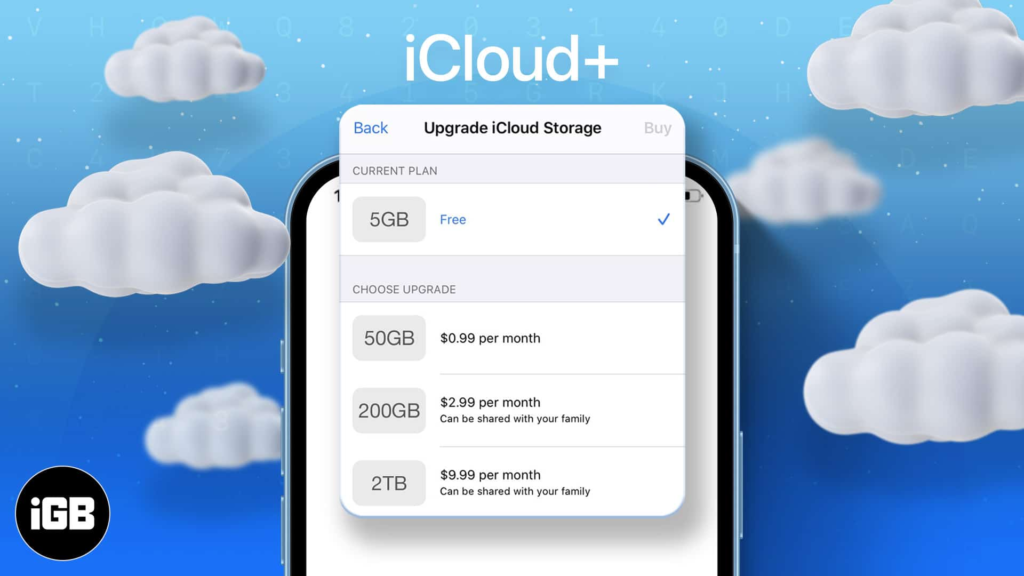
Choosing the right plan will vary from one user to another. For an individual using his devices minimally, 50GB storage can suffice, but for a household that shares photos and videos among other things, then a bigger plan might be required. According to Apple, iCloud+ plans can be shared between family members via the Family Sharing service. The purchase of extra space might not be a waste of money if it helps to safeguard your precious memories and make your devices better to use.
It would not be wise to choose an option just because it sounds impressive in terms of numbers. Increased storage is helpful only when needed. First of all, you should find out about your existing needs, how fast they increase, and then choose the lowest plan giving you enough space for growth.
There is one more consideration when it comes to iCloud+ it is not just extra storage. At the moment, Apple also offers certain privacy-related tools such as iCloud Private Relay, Hide My Email, Custom Email Domain, and HomeKit Secure Video in iCloud+ plans (although features may vary between plans and countries). If you have a well-built Apple ecosystem, the switch will be beneficial in ways beyond storage.
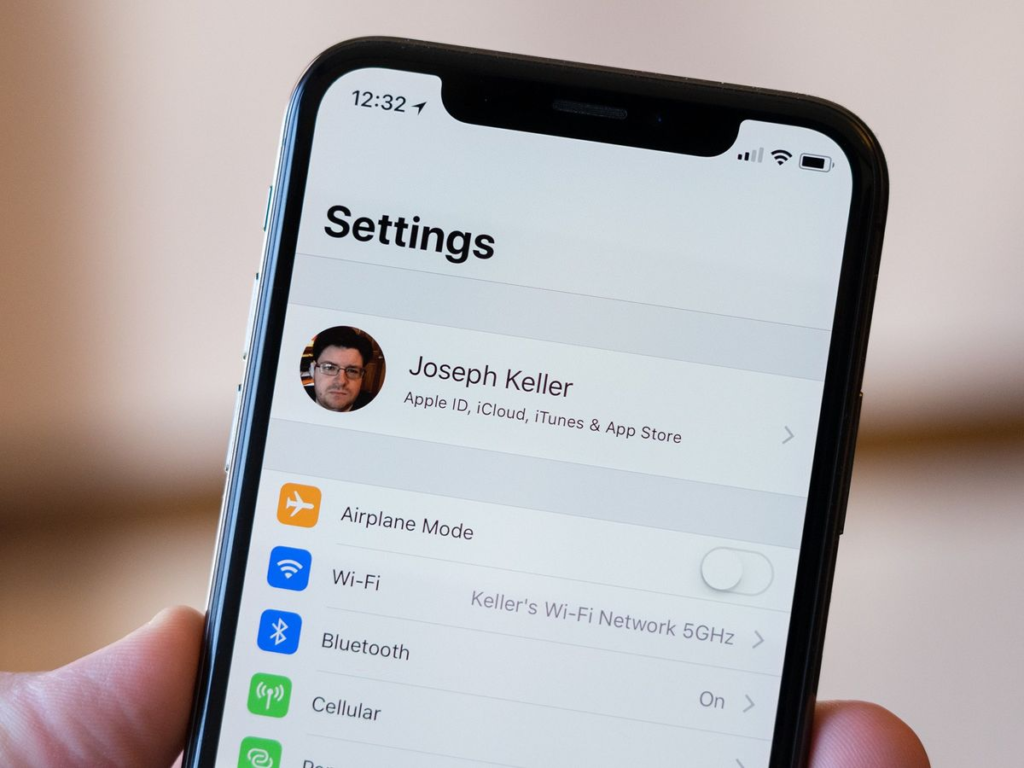
Your Apple Id is basically a gateway to many Apple services. It is worth mentioning that at the moment Apple refers to your Id as to the Apple Account in its user interface and other resources. The account allows you to connect devices and use services such as iCloud. According to Apple, you can sign in using Settings and then choose which iCloud options to use.
That’s why you should never consider doing major storage work while you are unsure about your login credentials. Do not try to delete all backups and other files from the cloud simply because you get a storage warning if you are not able to log into the account. First make sure you have account access, and only then deal with storage space. This is quite similar to changing your locks but first forgetting about the keys.
If you are locked out, facing some kind of account issues, or just not understanding why your iCloud information is not displayed correctly, it is always better to seek for help rather than just guessing. You can find some tips for troubleshooting account-related issues in Apple’s support documentation as well as some general iCloud information that explains how it is connected to your photos, files, and backups.
Support can really come in handy when the matter is not “I need more storage”. If your photos are not syncing, you are facing backup issues, or your account behaves inconsistently, deleting unnecessary files will only worsen the situation. So it is better to identify the problem first.
The common mistake that people make is to view their iCloud storage and iPhone storage as some kind of one huge storage tank. They are related, but they cannot be used interchangeably. The iPhone has its physical storage capacity, and iCloud has its own cloud-based storage capacity for such things as backups, photos, files, and any other synchronized information. The current advice given by Apple on their website clearly divides the two when describing how a user can check the amount of available space.
After you grasp the difference between the two storage options, it will be easy for you to manage them. If your phone has no space left, you will need to optimize photos, delete unnecessary applications, or move certain files. In case your iCloud storage is full, you need to analyze your backups, photos, files, and any other cloud-based information. And in case both of them are full, congrats, you have reached a very rare technological accomplishment. You need to address each problem separately rather than assume that increasing one of them solves everything.
Exhausting your iCloud storage does not necessarily mean that you have to pay. On some occasions, you just need a couple of minutes of cleaning to restore a lot of space if you were storing outdated backups, excess files, duplicated pictures or big video files. Of course, there are solutions offered by Apple and even such feature like Optimize iPhone Storage to decrease the amount of occupied local storage of your photos library.
Nevertheless, you may choose to upgrade to additional iCloud storage if you simply do not have enough free space anymore. iCloud+ may become very convenient for a person who uses many Apple devices and wants to access his photos, backups, documents and other stuff through iCloud+. The most important advice from my side is to see what takes up all the storage on your device.
Is iCloud storage free?
Yes. Apple currently provides 5GB of free iCloud storage with an Apple account. If you need additional space, you can upgrade to an iCloud+ plan.
Does iCloud storage increase my iPhone storage?
No. iCloud storage and iPhone Storage are separate. iCloud can help you manage your phone’s available space, particularly through features such as Optimize iPhone Storage, but purchasing cloud storage does not physically increase your iPhone’s built-in capacity.
What is iCloud Drive used for?
iCloud Drive is used to store and synchronize files so you can access them across supported Apple devices and through iCloud. It is particularly useful for documents and other files that you want available across your devices.
Can I free iCloud storage without paying?
Yes. You can review old backups, delete unnecessary files, clean up photos and videos, and remove other unwanted data. Apple also provides storage recommendations that can help identify content you may no longer need.
What should I do if my Apple Id is not working?
If you cannot access your account or your iCloud information is not behaving normally, avoid deleting important data just to troubleshoot the problem. Check Apple’s official account and Apple Id Support resources first so you can resolve the access issue safely.

Share your details, and we will get back to you shortly!
This will close in 0 seconds
Share your details, and we will get back to you shortly!
This will close in 0 seconds





[…] If Your iCloud Storage Is Full, These 5 Simple Tricks Can Help […]