Physical Address
304 North Cardinal St.
Dorchester Center, MA 02124
Physical Address
304 North Cardinal St.
Dorchester Center, MA 02124

When I initially looked into signing up for an Apple TV subscription, I really didn’t have a clue where to begin. The terms “Apple TV,” “Apple TV+,” and “Apple ID” were being used liberally wherever I went, and I felt like I had inadvertently opened up a dictionary of tech terms. But once I jumped in at a step-by-step pace, not only was the entire process simpler than I thought, it ended up being one of the best streaming moves I’ve ever made.
Let me take you through my process, step by step, in plain human language that’ll make sense of getting started — and why it’s completely worth it, even if you’ve never used an Apple device before.
Let’s get the confusion out of the way first. “Apple TV” is used to refer to three different things:
Think of it this way: the Apple TV app is your all-in-one media hub, Apple TV+ is Apple’s own streaming platform, and the Apple TV device is the box that brings it all to your screen if your TV isn’t already smart.
I myself opted for the 4K, and to be honest, it’s fast, sleek, and reliable. If you’re a beginner, you may wonder: “Do I really need the device?” Short answer: Not necessarily.
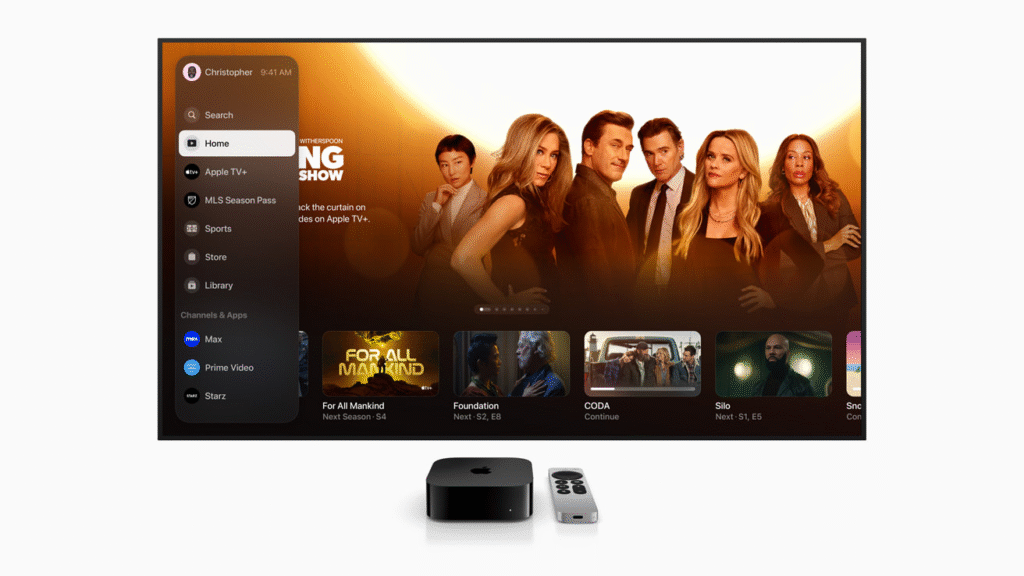
The 4K model provides you with high-definition quality, improved performance, and improved storage — particularly handy if you enjoy cinematic viewing. The HD version is cheaper and still provides smooth performance in case you do not own a 4K TV.
If you already have a smart TV, iPhone, iPad, or MacBook, you can simply use the app without requiring the box. I even stream Apple TV+ on my iPhone when I’m taking public transport.
Your ID is your golden ticket — it allows you access not only to TV, but the App Store, iCloud, and all the rest of Apple’s stuff.
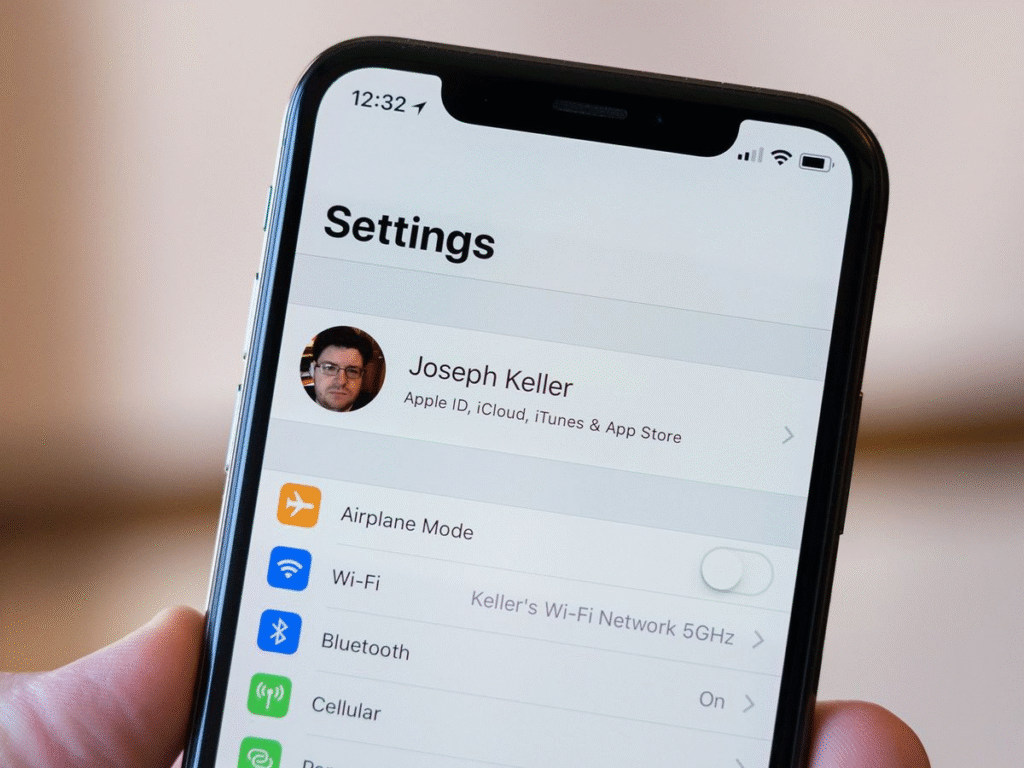
I made mine in a few minutes with my email and a password. After you have it, you’ll use it to log into the Apple app, monitor subscriptions, and sync your progress between devices.
This was a breeze. I went to my Apple App settings, clicked “Accounts,” and logged in. In seconds, my watchlist synced up and I was ready to stream.
What I adore is how I can begin watching a series on my iPad and pick it up where I left off on my TV without ever missing a beat. That’s the magic of Apple syncing.
This step counts. Apple has two main choices:
I started with TV+ for the originals and then added some channels depending on my tastes.

Now that you’re all set up, it’s time to begin streaming! The layout is easy to use, and I found shows I enjoyed in a matter of minutes. The “For You” section provided me with acutely accurate recommendations, and I was quickly hooked on some shows.
Press the Siri button on the Apple remote and say things like “Show me romantic comedies” or “Play the latest episode of Severance.” It’s so handy that I hardly use the manual search anymore.
I use the TV app on my iPhone whenever I’m on the road. My account remains synced, and I can download episodes for viewing offline.

Its cost is very reasonable if you’re using TV+ — just around $9.99/month. If you’re going to add channels or bundle with Apple One, your monthly Apple TV cost will go up, but you’ll also save on other Apple services like iCloud and Apple Music.
Pro tip: You’re given a 7-day free trial or 3 months free if you purchase a new Apple device. That’s how I began!
These mistakes can cost you time or money — don’t make my newb errors!
They both have their advantages. Netflix has quantity, Prime has diversity, and Apple has quality — fewer shows, but very refined. The interface is also less confusing and easier to use, in my opinion.
If you’re hoping to watch live TV, some channels require linking your TV provider account. Not every live stream is available by default, but many sports, news, and special events are covered via third-party channel subscriptions.
I began uncertain, apprehensive, and questioning whether or not I needed an additional streaming service. But this subscription has been a pleasant surprise. With its sleek interface, tailored suggestions, seamless streaming experience, and high-quality content, it’s now my default platform, particularly when I’m looking for something new and premium.
No matter if you’re watching on your TV, iPhone, or tablet, the convenience and quality are worth every penny. If you’re a newbie, believe me — just do the steps, and you’ll be binge-watching like a pro in no time.

Share your details, and we will get back to you shortly!
This will close in 0 seconds
Share your details, and we will get back to you shortly!
This will close in 0 seconds


